
The one Libby thing you need to do right now (seriously, stop scrolling)
Your tags, holds, and library cards are one phone reset away from disappearing — here's the 60-second fix.

Okay real talk — do you have all your library cards saved in Libby? Your tags, your holds, your carefully curated shelves?
Now imagine losing all of that.
It happens. You get a new phone, the app glitches, you do a reset — and poof. Gone.
Think of What to Read Next as your well-read best friend, your favorite author’s bookshelf, and your library guide — all in one place. Every week we deliver trusted curated book recommendations from 3,000+ books read, 500+ author interviews, and a community of readers just like you, plus tips to maximize your library and read more for less.
Magic of Libby Passkey
Libby now lets you create a passkey to back everything up, and it takes about 60 seconds. A passkey is basically a secure backup that lives in your phone’s password manager. It uses your Face ID or fingerprint (or PIN) to protect your data — Libby never even sees your biometrics.
Here is how you will create your own Libby Passkey:
1. Update Libby to the latest version
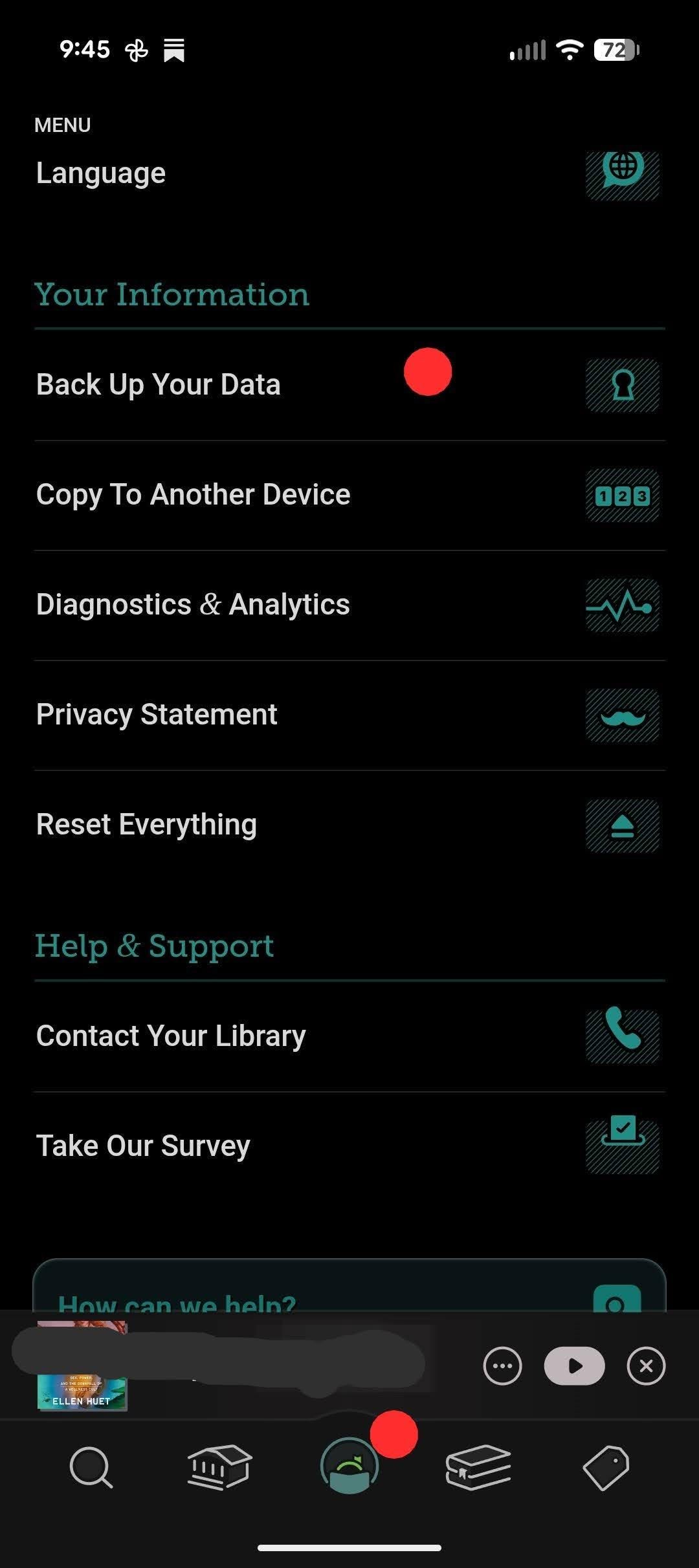
2. Tap the Menu (the three lines).
NOTE: In the comments, Fiona kindly shared that she found the information below the “Inspire Me” button you will see this down in the bottom.
3. Under “Your Information” → tap Back Up Your Data
4. Tap Create Recovery Passkey
5. Follow the prompts, tap Done
That’s it. Done. Your tags, library cards, and shelves are safe.
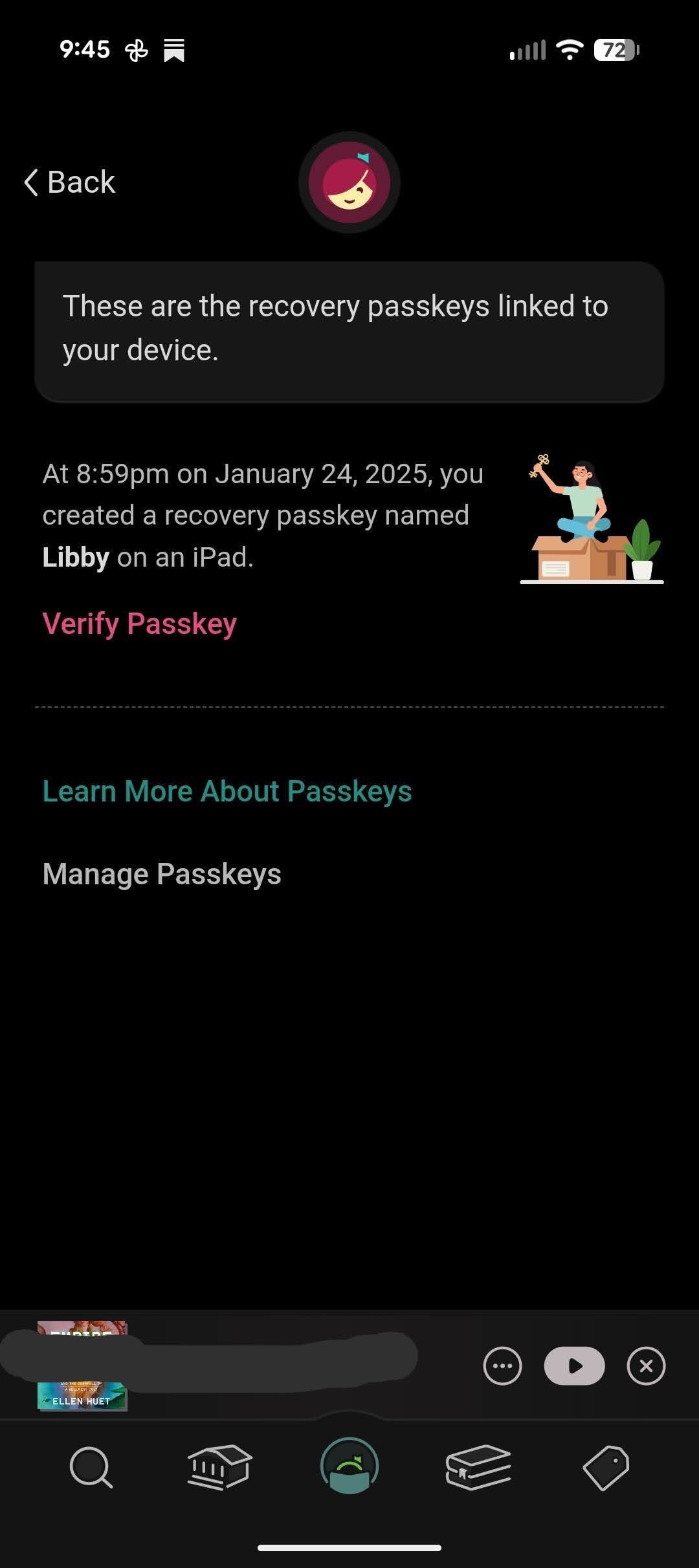
Your device needs to be Android 9+, iOS 17+, or a supported desktop. If you don’t see the passkey option, your device might not support it yet — but don’t worry, you can use a setup code instead to move your data to another device. You can also access everything at libbyapp.com in a browser.
Go set up your Libby Passkey right now before you forget. It takes 5 minutes and your Your future self and their 47-book holds list will thank you. 📚


I also had the option to save my passkey to my password manager. I use the free version of Bitwarden. I did that and then the backup data area in Libby said I could verify my passkey, which I did and it worked.
Thanks for sharing this great info!
Thank you so much! It was so easy—mine was also on Inspire page. I also finally discovered why my wishlists weren’t syncing across devices—one was tagged Regular and the other Over Drive.